

Product Update | Video Editing
The short version: In Lumen5, you now crop images and video directly on the scene. Double-click any media and a crop box appears right where it sits, with your text, masks and neighbouring media still in view, plus a faint preview of everything you’re trimming away. Rotate, flip, reset, cancel and apply all live in one toolbar. It’s the standard crop experience for every Lumen5 user, not a beta and not an opt-in.
Until last week, cropping a photo in Lumen5 was a bit like getting a haircut without a mirror. ✂️
You’d open a separate window, drag a box around your image floating alone in empty space, hit Apply, and then wander back to your scene to inspect the damage. Not quite right? Back you went. Again.
We’ve retired that window. Cropping now happens on the scene itself, inside your real design, with the bit you’re cutting off still visible while you frame the shot. What you see while you drag is exactly what publishes.
Why cropping in a separate window never really worked
Here’s what the old window couldn’t tell you: your scene isn’t a rectangle with one photo politely sitting in it.
There’s a circle mask cutting into the image. There’s a headline stretched across the middle third. There’s a second piece of media next to it, and a talking head tucked in the corner. Crop in isolation and you’re guessing how all of that will collide.
So you’d guess. Then you’d apply, look, reopen, nudge, apply again, and quietly wonder where your afternoon went. If that loop feels familiar, you’re in very good company. It’s the reason we rebuilt this.
How on-scene cropping works in Lumen5
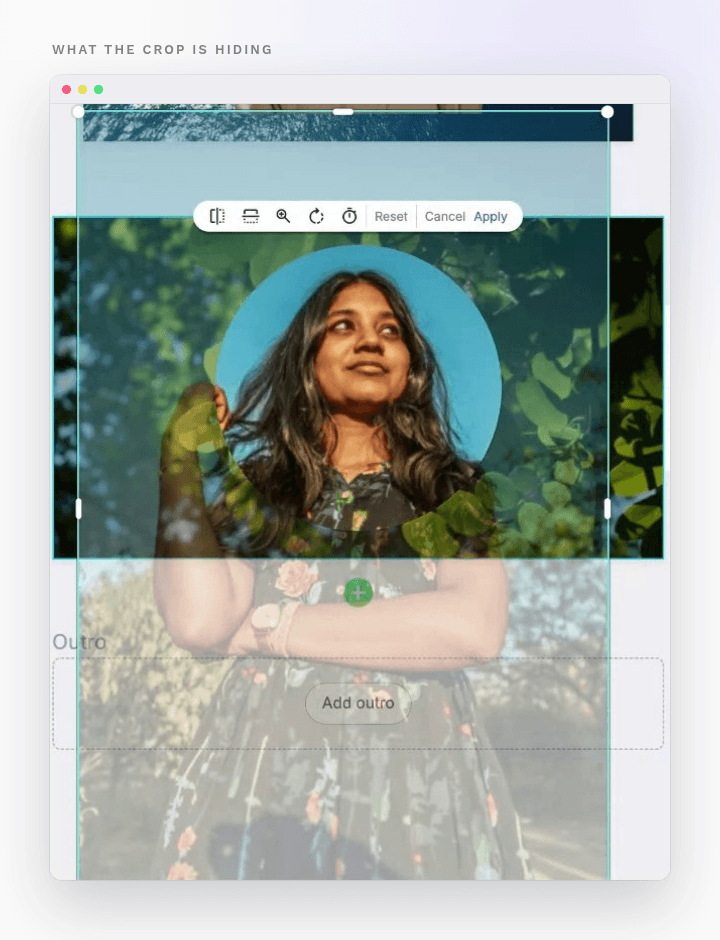
The crop box now lives where your media lives. Double-click any image or video in a scene, and you’re cropping in context:
- Your layout stays put. Text stays where it is, masks keep their shape, and neighbouring media doesn’t budge.
- Zoom goes where you point. Zooming moves toward your cursor, so you’re not chasing the important part of the image across the frame.
- Everything’s in one toolbar. Rotate and flip sit right next to Reset, Cancel and Apply.
- No surprises at publish. The framing you see on the scene is the framing your audience sees.
That last point is the whole idea. Cropping should be a decision you make once, with your eyes open, not a negotiation you have with the preview button.
You can finally see what you’re cutting away
This is the part we’re most proud of.
An outline tells you where the crop edge is. It doesn’t tell you what’s falling off it. In the old setup, anything pushed off the scene or tucked behind a mask simply vanished, which meant you were cropping blind and finding out later.
Now the hidden part of your image renders faintly outside the scene, locked to the crop box. It fills in around masks and stops neatly at their edges. Zoom back below 100% and the ghost image disappears, because nothing’s being cut anymore.
In practice, you catch the little disasters before they ship:
- The product photo that’s lost a corner
- The logo clipped neatly in half
- The customer in your case study cropped right at the chin
None of these will break a video. They’ll just make it look like nobody checked, which, for a brand, is arguably worse. These are exactly the details an outline hides and a preview reveals.
Why on-scene cropping matters for teams sharing brand templates
If you’re a solo creator, this saves you a few loops. If you’re a marketing team sharing one set of brand templates, it saves your sanity.
Think about how templates usually age. Five people edit the same template over a month, each one in a slight hurry, and by week four it looks like a distant cousin of the original. With cropping that shows the real scene and the real cut, you get:
- Fewer “can you re-crop scene four?” messages in your team chat
- Fewer brand assets quietly mangled by someone racing a deadline
- Templates that still look like your templates after the fifth editor has had a go
Consistency isn’t glamorous, but it’s what makes a brand feel like a brand.
Making the video was never the hard part
There’s a reason this kind of control matters more right now, not less.
Generating video has become the easy step. At Google I/O in May 2026, YouTube, which now reaches around three billion users, introduced a Remix option for Shorts that lets people rewrite someone else’s Short with a prompt, and AI-remixed Shorts carry a label saying so. When making a video takes one sentence, simply having a video stops being impressive.
What separates a video worth watching from one worth scrolling past is whether the framing, the crop, the brand assets and the composition were chosen by someone, on purpose. Anyone can make a video now. Not everyone makes it look like they meant to.
That’s the work we’d rather give you better tools for. AI can handle the heavy lifting of getting a draft on the screen. The judgement calls about how your brand shows up should stay firmly in human hands, and those hands deserve a decent cropper.
Try it on your next scene
Next time you drop a photo into a scene and it lands slightly wrong, skip the sigh and double-click it. You’ll get the crop box right there on the scene, the toolbar above it, and a faint view of everything you’re about to lose.
We’re not done with this one. Moving and resizing the frame itself is next on the list, and this release is the groundwork for it.
FAQ: Cropping in Lumen5
How do I crop an image or video in Lumen5? Double-click the media in your scene. A crop box appears directly on the scene, and you can drag, zoom, rotate or flip before clicking Apply. There’s no separate crop window anymore.
Can I see the part of the image I’m cropping out? Yes. Lumen5 shows the cropped-away area faintly outside the scene, locked to the crop box, so you can see what you’re removing before you commit. It disappears when you zoom below 100%, since nothing is being cropped at that point.
Does cropping work with masks and text in my scene? Yes. Masks keep their shape, text stays in place and neighbouring media stays where it is while you crop. The hidden image fills in around masks and stops at their edges, so you’re always framing against your actual design.
Can I rotate or flip media while cropping? Yes. Rotate and flip are in the same toolbar as Reset, Cancel and Apply.
Is on-scene cropping available to all Lumen5 users? Yes. It’s now the default crop experience for everyone, not a preview or an opt-in feature.
What’s coming next for cropping in Lumen5? Moving and resizing the frame itself is on the roadmap, and this release lays the groundwork for it.
We’d love to hear what you think
This feature got better because people told us, out loud and in detail, what bugged them about the old one. So please keep doing that. If you try the new cropper and something feels off, let us know. We read all of it, genuinely.
Ready to crop with your eyes open? Jump into Lumen5 and try it on your next video. And if you like your marketing insight with a side of real talk, tune into the Supercharge Marketing podcast, where industry leaders share what’s actually working for them right now.
Lumen5 helps B2B marketing teams produce more video content faster and at a fraction of traditional production cost, with brand kits and templates that keep every scene on brand. Learn more or book a demo →